
Catalog on your website
Embed your cable catalog on your own website.
Your website stays as it is: a code snippet shows your cables there as cards, and you maintain them only in the portal.
Who it's forFor marketing, sales, and the web agency of a cable manufacturer.
In short
- One code snippet, pasted once
- Cards with image and name, in your color
- Always as current as the portal
- Your own domain, depending on your plan
Our cables
Data cables
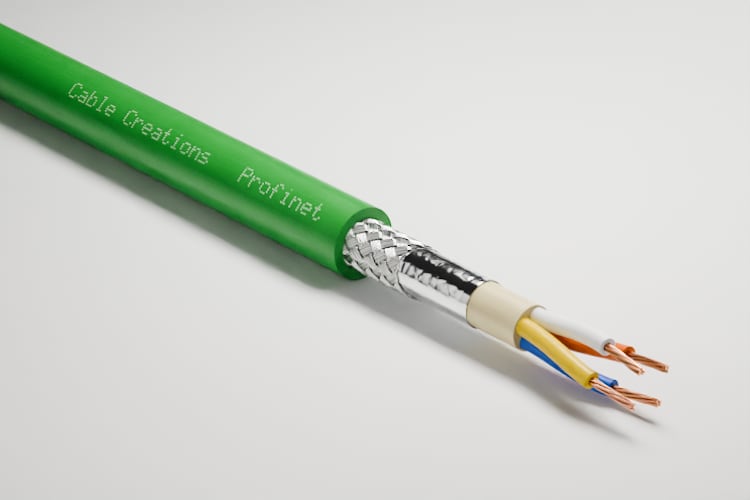
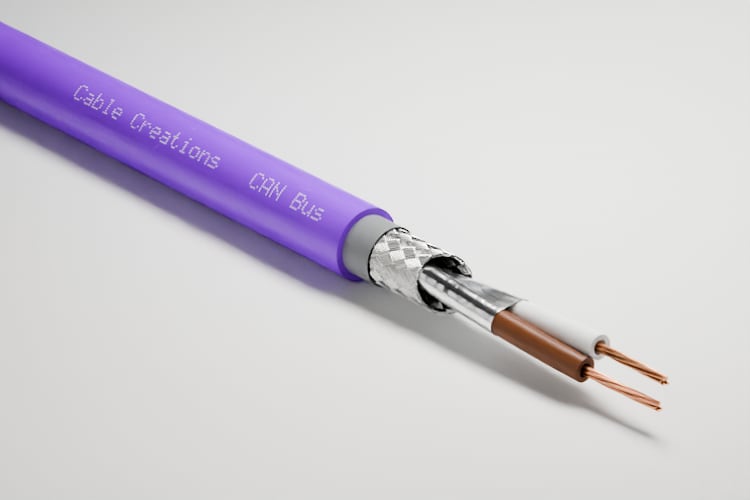
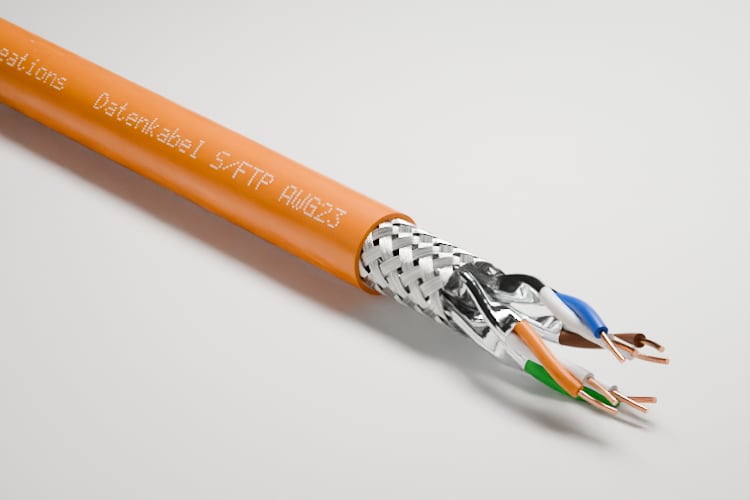


What does it mean to embed the catalog?
What it is
Embedding means your cables appear on your own website, while you still maintain them only in the portal.
Your catalog lives in the portal and has a public address there. It can reach your website in two ways: embedded in one of your pages, or on your own domain. You can combine the two.
Key terms
- Catalog
- The public pages for your published cables: overview, search, and one page per cable.
- Embed
- A frame in your own page where the portal shows your cables as cards. Technically, it is an iframe.
- Code snippet
- Two lines of HTML that the portal gives you, ready to paste. Put them in a page, and the embed appears there.
- Card
- One cable in the embed: image, name, and designation. A click opens the cable's page in the catalog.
- Your own domain
- An address that belongs to you, such as catalog.your-company.com. The whole catalog then runs under that name.
How does the catalog get onto my page?
How it works
You copy a code snippet in the portal, and your agency adds it to the page.
The example shows the whole catalog embedded. For a single cable, you pick the cable from a list in the first step.
The process in six steps along one line: you choose the embed, copy the code, and add it to your page. The portal delivers the cards. Your visitor clicks a cable. The portal counts the view.
YouThe portalYour visitor
YouChoose the embed
YouCopy the code
YouAdd it to the page
The portalDeliver the cards
Your visitorClick a cable
The portalCount the views
Step by step
- Step 1 of 6: You
Choose the embed
In the portal under “Your website,” you choose the whole catalog or one cable, and the language. A preview appears below.
- Step 2 of 6: You
Copy the code
The portal shows the finished code snippet. It comes with a script, or as a plain iframe for pages that don't allow scripts.
- Step 3 of 6: You
Add it to the page
You or your agency paste the code where the cables should appear. Nothing else on your website changes.
- Step 4 of 6: The portal
Deliver the cards
When someone opens your page, the frame loads the cards from the portal. With the script, its height adjusts to the content.
- Step 5 of 6: Your visitor
Click a cable
Your visitor clicks a card. The cable's page in the catalog opens in a new tab, and your website stays open.
- Step 6 of 6: The portal
Count the views
Views through the embed appear in analytics as a separate source, “Embedded.”
What happens on its own after that
You add the code once. Anything your team later publishes, changes, or unpublishes in the portal shows up in the embed without anyone touching the website.
The catalog on your own website
- The manufacturer's website, as it is.
- A code snippet embeds the catalog there.
- What is published in the portal appears there.
What does a visitor see on my website?
What your visitor sees
Your visitor sees your usual page, with your cables in the middle of it as cards in your color.
The embed uses the color and logo you set for your catalog; the font is the catalog's. It shows at most 60 cables; the link in its header leads to the whole catalog.
Our cables
3Data cables
- 4
Coaxial cables
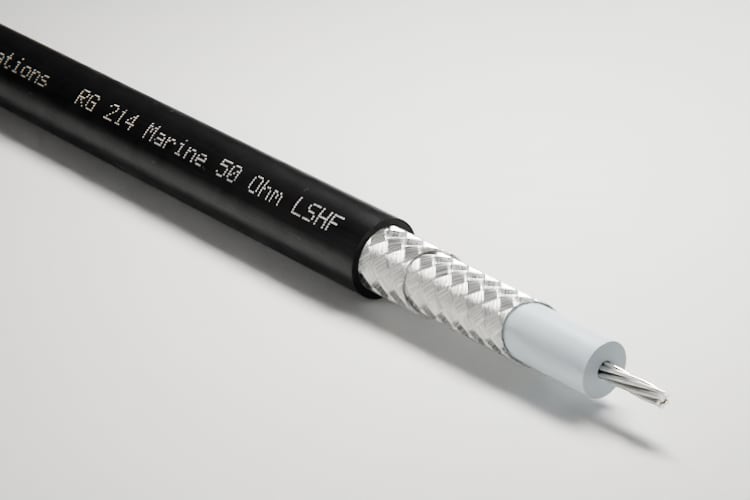


What the numbers show
Your page around it
The menu, heading, and text of your website stay as they are.
The embed's header
Your logo or company name, and the link to the whole catalog.
Grouped by family
If your catalog has several cable families, each appears as a heading above its cards.
One card per cable
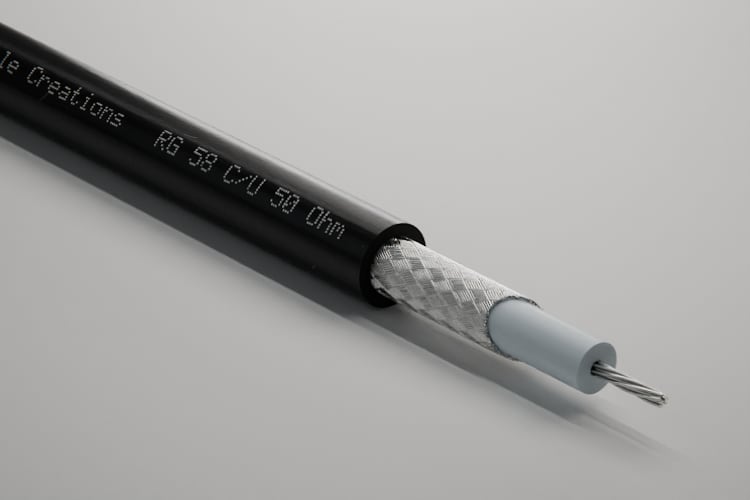
The cable's first image, its name, and its designation.
A click opens the catalog
The cable's page has the technical data, the datasheet, the 3D view, and the inquiry form.
Whole catalog, one cable, or your own domain: which one do I use when?
The three options compared
The overview belongs on your product page, a single cable in an article, and your own domain in the address bar.
The options are not mutually exclusive. Many manufacturers embed the overview and run the catalog behind it on their own domain.
Three cases, each with an arrow to its option: if a page should show all cables, embed the catalog. If an article should show one cable, embed that cable. If the catalog should run under your name, use your own domain.
Ifa page of your website should show all cables
thenEmbed the catalog
Ifan article should show one specific cable
thenEmbed one cable
Ifthe catalog should run under your name
thenYour own domain
| Aspect | Embed the catalog | Embed one cable | Your own domain |
|---|---|---|---|
| Best when | a page of your website should show all cables | an article should show one specific cable | the catalog should run under your name |
| What appears | Your cables as cards, by family | One cable with image, key data, and a button | The whole catalog with search and cable pages |
| Where | On a page of your website | In an article or on a product page | At an address such as catalog.your-company.com |
| What you do | Paste the code snippet | Pick the cable, paste the code snippet | Create two DNS records and have them verified |
| Who sets it up | Any team member can copy the code | Any team member can copy the code | An owner in the portal, your IT team in DNS |
| Search and inquiry | One click away, in the catalog | One click away, in the catalog | Directly at your address |
| Plan | In every plan with a catalog | In every plan with a catalog | Only in plans with your own domain |
What do I gain, and where are the limits?
Advantages and limits
You maintain your cables in one place, but you get cards in a frame, not a product module you can design freely.
Advantages
One set of data
Data and images live only in the portal. Nothing on the website can go out of date.
No project for the agency
The embed with the script needs just two lines of code. The script has no dependencies and loads the frame only when it comes into view.
Your look
You set the color and logo once in the portal. After that, the catalog and the embed look the same.
Works without a script
Where your website does not allow third-party scripts, you use the plain iframe with a fixed height.
Views are counted
Analytics shows how many views came through the embed.
Reversible at any time
You take the code out again or remove the domain. The catalog stays available at its address in the portal.
Limits
No search in the embed
The embed shows cards. Search, the inquiry form, and the 3D view are in the catalog, one click away.
A frame, not part of your page
The content sits in an iframe. Your website's CSS does not apply there, and the cards are not part of your page's text.
A click opens a new tab
A cable's page opens in the catalog, not within your website.
Not restricted to your website
The content is public. Another site could embed the same frame.
One domain per organization
You cannot have several domains or a second address with www.
Your own domain needs an owner and your IT team
An owner enters the domain in the portal, and your IT team creates the two DNS records with your domain provider. The portal does not control how long they take to propagate.
Not the right tool if:
- You want to show the cables in your own layout, designed down to the last detail; that is what the API is for.
- Visitors need to search, filter, or send inquiries directly on your page.
- Your website is not allowed to load a third-party script or an iframe.
More on this How the data reaches your website through the API →
How is this different from product pages we maintain ourselves?
Compared with today
Today someone maintains every cable a second time in the CMS; with the embed, that second set of data goes away.
Your website and its CMS stay. The list of cables just no longer has to be entered by hand.
Today, two separate sets of data: the in-house data and the website's product pages, with someone copying every cable across by hand. With the embed, one set in the portal that appears on the website through a code snippet.
Until now
Product pages by hand
UpkeepEvery cable a second time, in the CMS
Embedded
Embed from the portal
UpkeepOnce, in the portal
| Aspect | Product pages by hand | Downloadable PDF catalog | Embed from the portal |
|---|---|---|---|
| Upkeep | Every cable a second time, in the CMS | A new PDF for every change | Once, in the portal |
| A new cable | Create a page, upload images, retype data | Waits for the next edition | Appears as soon as it is published |
| How current | As current as the last update | As of the day it was exported | Whatever is in the portal |
| Images | Whatever is on hand, often inconsistent | Fixed in the document | The approved images from the portal |
| Effort for the agency | Build and maintain a template | Replace a file | Two lines of code, once |
| Design | Entirely up to you | Entirely up to you, but rigid | Cards in your color, fixed layout |
What do I need, and what does it cost?
What you need and what it costs
You need a catalog that is online and a spot on your website; the embed costs no credits.
What you need
A catalog that is online
At least one cable is published, and the links to your legal notice and privacy policy are on file. Before that, the portal provides no code, and the embed shows no cables.
One image per cable
A cable in the public catalog needs an approved image. It also appears on the card.
Access to your website
Someone has to be able to paste HTML into a page: your agency or the person who runs your CMS.
For your own domain: access to DNS
An owner enters the domain in the portal. Your IT team creates a TXT record and a CNAME record. The first confirms that the domain is yours; the second points to the platform.
No account for visitors
The embed and the catalog are public. Nobody signs in.
What it costs
The embed costs no credits and nothing per view. Your plan determines how many cables you can publish and whether your own domain is included.
What else do people ask?
Frequently asked questions
Short answers to the questions your agency and IT usually still have.
- What does our agency have to do?
- Paste the copied code where you want it on the website. That is all; there is also a version without a script.
- Can visitors search or send an inquiry in the embed?
- No. The embed shows cards; search, the inquiry form, and the 3D view are in the catalog, which every card links to.
- How soon does a new cable appear on our website?
- As soon as it is published in the portal. The embed reads the same data as the catalog; nobody changes anything on the website.
- What happens to the address in the portal once our own domain is active?
- It redirects to your domain. If you remove the domain, the catalog is available at the address in the portal again.
- What do we need for our own domain?
- A plan that includes it and access to your domain's DNS records. You can have one domain per organization.
- Does the embed set cookies for our visitors?
- No. Views are counted without cookies. The IP address only feeds into a daily value that is then deleted; no visitor is recognized beyond that day.