
3D view and 3D files
3D model of your cable: rotate it in the browser, download it as a file.
The 3D model shows your cable as a solid object. Your customers rotate it in the browser and hide layers, and your engineers download it as a file.
Who it's forFor sales, marketing, and engineering at a cable manufacturer.
In short
- 3D view in the portal, the catalog, and the showcase
- Hide layers one at a time
- OBJ, STL, and GLB for each size
- From the same data as image and drawing

What is the 3D model of a cable?
What it is
The 3D model is your cable as a solid object on the computer: rotate it in the browser or take it as a file.
It is built from the construction data, separately for each size. The images, cross-section drawing, and 3D view all come from the same model. That is why they never contradict each other.
The 3D model of one size and the two things that come from it: the 3D view in the browser with two images of the cable, and the 3D file to download as OBJ, STL, or GLB.
The 3D model of one size
View
3D view in the browser


- Cable page in the catalog
- Showcase
- Portal
Download
3D file to download
- GLB for the web
- OBJ for engineering
- STL for printing
Key terms
- Size
- One orderable configuration of a cable type, for example with a thicker conductor. Every size has its own model.
- 3D view
- The model in the browser: you rotate it, zoom in, and hide layers. Nobody needs a plugin.
- Layer
- One part of the construction, such as the jacket, braid, foil, insulation, or conductor.
- 3D file
- The model as a download, in OBJ, STL, or GLB. You open it in your own software.
- Triangle mesh
- The surface of an object, made up of many small triangles. That is how OBJ, STL, and GLB store a shape.
How does the 3D view get onto my pages?
How it works
The portal creates the 3D view itself, and it appears wherever the cable is shown.
You don't have to set anything up. You get the file for your own software from the portal whenever you need it.
The process in five stations on one line: the portal creates the 3D view, and you publish the cable. Your customer starts the view and rotates the cable. You download the file in the portal.
The portalYouYour customer
The portalCreate the 3D view
YouPublish the cable
Your customerStart the view
Your customerRotate and hide layers
YouDownload the file
Step by step
- Step 1 of 5: The portal
Create the 3D view
As soon as a size's model is saved, the portal calculates a light version of it for the browser. You don't have to start anything.
- Step 2 of 5: You
Publish the cable
You publish the cable in the catalog or add it to a showcase. The 3D view then appears on the page automatically.
- Step 3 of 5: Your customer
Start the view
Your customer first sees a still image and the file size of the model. The 3D view loads only after a click.
- Step 4 of 5: Your customer
Rotate and hide layers
Your customer rotates the cable, zooms in, and turns off the jacket, shield, or insulation one at a time.
- Step 5 of 5: You
Download the file
In the portal, you download the model as OBJ, STL, or GLB. The price in credits is shown before the first download.
More on this How construction data becomes an image →
What can you do in the 3D view?
What your customer sees
Your customer sees the cable as a solid object to rotate, zoom in on, and open layer by layer.
The drawing explains the controls. Below it is the real 3D view of the same cable to try.

- Jacket
- Braid
- Foil
- Insulation
- Conductor
5Arrow keys, plus, minus
Try it yourself: S/FTP AWG 23
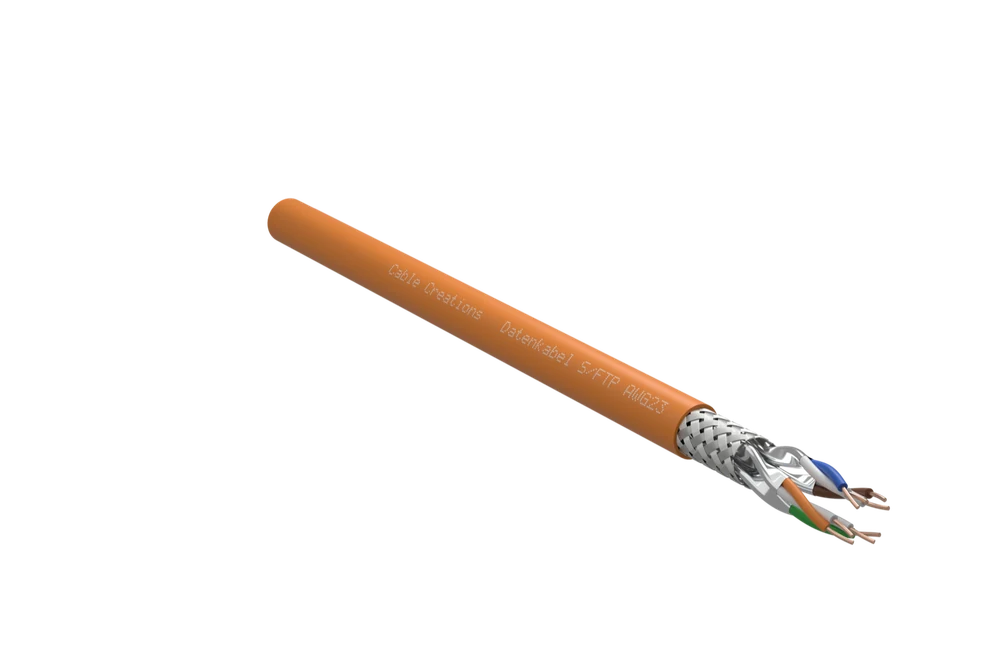
Not loaded yet. The model is 0.9 MB.
What the numbers show
The cable
Rotate it and zoom in with the mouse or a finger.
Camera angles
There are 3 camera angles: stripped end, cut at the cable end, and the whole cable.
Layers on and off
The print, jacket, braid, foil, insulation, and conductor can each be hidden.
Full screen
If you like, the view fills the whole screen.
Keyboard
Arrow keys rotate, plus and minus zoom, and number keys select the camera angle.
Which file do I use for what?
The file formats compared
GLB is for the web, OBJ for visualization and engineering, and STL for 3D printing.
You download the files in the portal, one size at a time. Visitors to your catalog see the 3D view but do not download the model.
Three rows, each with a purpose and its file format: for websites, GLB as a cable in a browser window; for engineering, OBJ as an object on a grid; for 3D printing, STL as an object on a printer bed.
IfWebsites and presentations
thenGLB
IfVisualization and engineering
thenOBJ
If3D printing and display samples
thenSTL
| Aspect | GLB | OBJ | STL |
|---|---|---|---|
| Used for | Websites and presentations | Visualization and engineering | 3D printing and display samples |
| What is in it | Shape, colors, and materials in one file | Shape with a material file, no textures | Shape only, no colors |
| Unit | Meters | Millimeters | Millimeters |
| Versions | Light for the browser, or with every single wire | One | One |
| Cost | Light version free, detailed version for credits | Credits, once per size | Credits, once per size |
What do I gain, and where are the limits?
Advantages and limits
The 3D view explains the construction better than any image, but it does not replace a CAD model.
Advantages
Open the construction yourself
Your customer hides layer after layer and sees what is underneath.
No plugin, no account
The view runs in the browser. Your customer installs nothing and doesn't sign in anywhere.
Does not slow the page
Until someone starts the view, the page shows only a still image.
Matches image and drawing
Everything shown comes from the same model.
Works with the keyboard too
Anyone who doesn't use a mouse can rotate and select with keys.
Paid files are kept
A file you have paid for is kept. Every later download is free.
Limits
No STEP, no IGES
The files are triangle meshes, not exact surfaces for engineering.
A short, straight piece
The model shows a piece of cable with a stripped end. It cannot be bent.
Simplified for the browser
In the 3D view, a stranded conductor is one object and the braid is one skin. Only the detailed version shows every wire.
No measuring, no cutting
The view has no measuring tool, no section plane, and no exploded view.
Not in the embedded catalog
The catalog embedded on your website as a code snippet does not show the 3D view. It is on the catalog's cable page.
STL not always ready to print
A cable is made up of many objects. A slicer may have to repair the mesh.
Needs 3D graphics in the browser
If a browser cannot display the model, the still image remains, and the page says so.
Not the right tool if:
- You need an exact CAD model for your engineering work, for example as STEP.
- You want to simulate bend radii, routing, or loads.
- You want your customer to download the model from the catalog page.
How is this different from a photo or a sample by mail?
Compared with today
A photo shows one angle, a sample arrives by mail, and the 3D view shows every side right away.
A sample is still the right choice when someone wants to feel the material and stiffness.
A single photo of a cable from one fixed angle. By contrast, the 3D view: the same cable with arrows for rotating and a list of layers, one of them hidden.
Until now
Product photo
AngleOne, chosen by the photographer
With the 3D view
3D view
AngleAny, in the browser
| Aspect | Product photo | Sample by mail | 3D view |
|---|---|---|---|
| Angle | One, chosen by the photographer | Any, in your hand | Any, in the browser |
| The construction | Only what the photo shows | What you strip yourself | Each layer can be hidden |
| For planning | No model, only an image | No model, only the piece | A file each for web, engineering, and printing |
| Time to the customer | Instantly, as a file | After days, by mail | Instantly, as a link |
| Feel the material | No | Yes | No |
What do I need, and what does it cost?
What you need and what it costs
You need a cable with a model in the portal; the view in the browser costs no credits.
What you need
A model per size
The model is built from the construction data. A size without a model has no 3D view.
For your customers: a published cable
The 3D view is on the catalog's cable page and in the showcase.
A current browser
That is all a visitor needs: no plugin, no account.
For files: access to the portal
Your team members download the files there, one size at a time.
What it costs
The view in the browser costs no credits, not even per visit. The light GLB file is free. OBJ, STL, and the detailed version cost credits once per size.
What else do people ask?
Frequently asked questions
Short answers to the questions people still have about the 3D model.
- Is the 3D model available as a STEP file?
- No. The models are triangle meshes for display, the web, and 3D printing, not exact surfaces for engineering. We offer OBJ, STL, and GLB.
- Can the STL file be printed as is?
- Not for every cable. A cable is made up of many separate objects, and a slicer may have to repair the mesh.
- Where do my customers see the 3D view?
- On the cable page of the public catalog and in the showcase, with no account and no plugin. The cable needs a model.
- Does every cable in the portal have a 3D view?
- Every size that has a saved model. Without a model, the page says that the 3D view is not available yet.
- What do the 3D files cost?
- The light GLB file is free. OBJ, STL, and the detailed version cost credits once per size, and the price is shown before the first download.
- What happens if a browser cannot display 3D?
- The still image remains, and the page says that the 3D view cannot be displayed here.